
 United States

EasyReader Features List
Explore EasyReader features in detail:
Find and Read Accessible Titles
Accessible Book Libraries
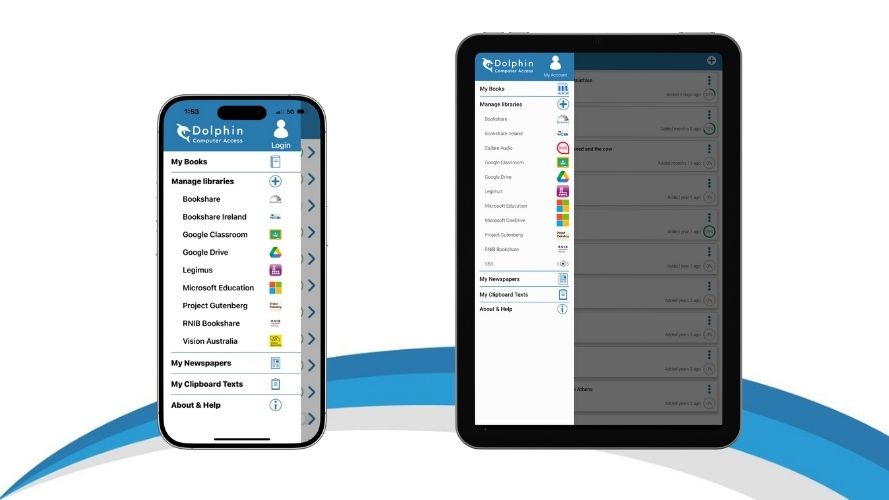
EasyReader provides a direct connection to 50 accessible library services around the world. You can apply for membership to your country's libraries directly on their websites. Ensure you have your library login details to hand the first time you use EasyReader App on any device, it will remember your details after that.
Libraries include:
- UK: RNIB Bookshare, RNIB Reading Services, Calibre Audio
- USA: Bookshare®, NLS Bard, Project Gutenberg
- Canada: CELA
- Australia: Vision Australia
- Sweden: Legimus, MTM Taltidningar
and many more
Talking Newspaper Services
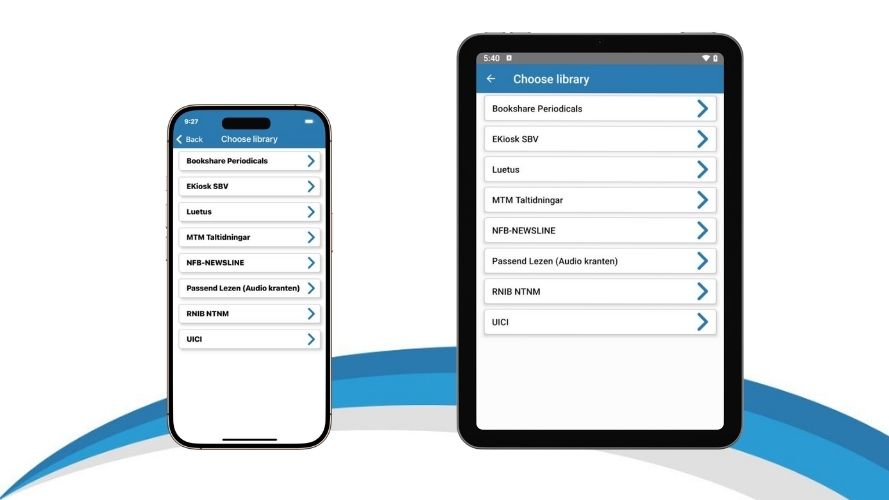
If you subscribe to an accessible newspaper service, login with EasyReader app and it delivers local, national or international newspapers and magazines directly to your phone or tablet.
The following newspaper services are supported:
- RNIB Newsagent (UK)
- Bookshare® Periodicals (US)
- NFB-NEWSLINE® (US)
- ATZ (Germany)
- MTM Taltidningar (Sweden)
- NKL (Finland)
- Passend Lezen (The Netherlands)
Importing Files and Clipboard Text
Import Files from your Device
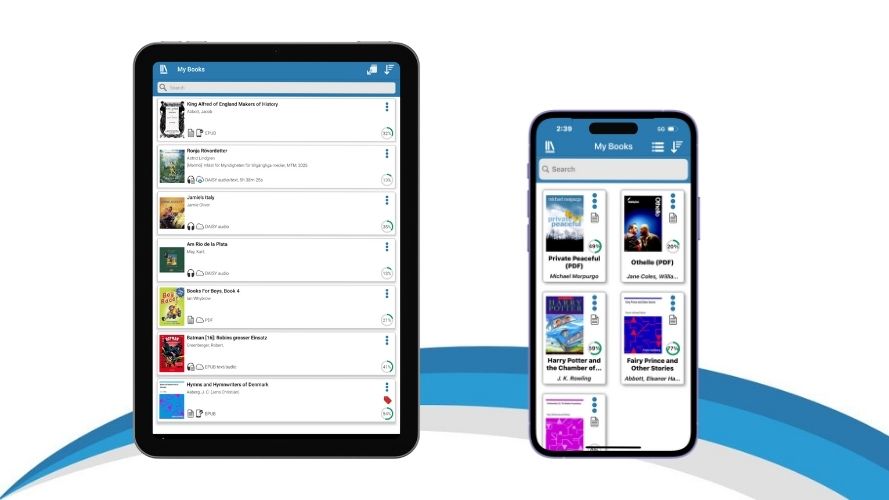
Use EasyReader app to import up to 5 accessible books or files stored on your device. Simply find the file on your device storage and choose 'Open in EasyReader'. You can open any Word, text, DAISY or unprotected EPUB file. Once you've opened the book once, it will be saved to your 'My Books' list so you don't have to import it again.
Unlimited imports are available as a premium feature for individual users, simply upgrade in-app. Schools, colleges and universities with EasyReader Education are entitled to unlimited imports, including text-based PDFs.
Copy and Read Clipboard Text
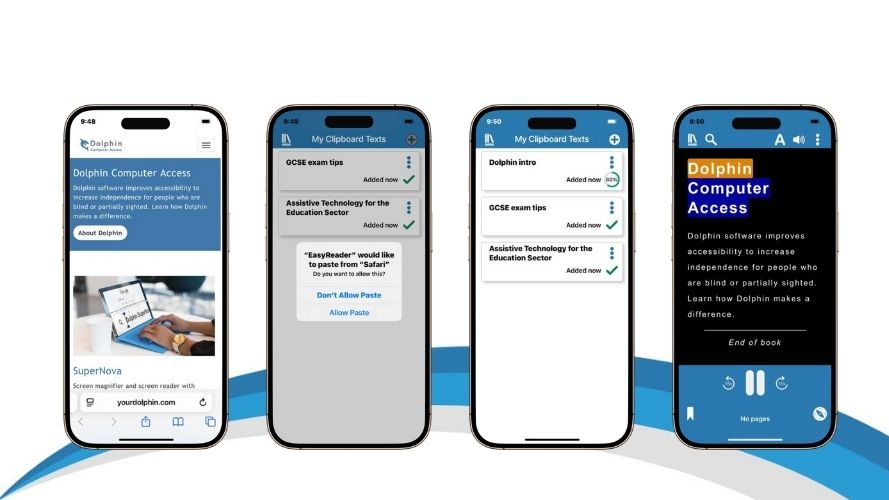
Copy text from anywhere on your phone, tablet or computer – including websites, emails and notes - and read it in EasyReader with accessibility features. Simply copy the text you want to read, open 'My Clipboard Text' in EasyReader App and choose ‘Allow Paste’.
When you open a clipboard text in EasyReader, you have the same reading options as you do with other accessible books and files. This includes options to adjust the colours, spacing and fonts and listening to text read aloud.
You can add 1 clipboard text in EasyReader App. Unlimited clipboard texts are a premium feature, available when you upgrade in app. Unlimited clipboard text imports are also available at schools, colleges and universities with EasyReader Education
Customisable Reading Features
Customise the Text
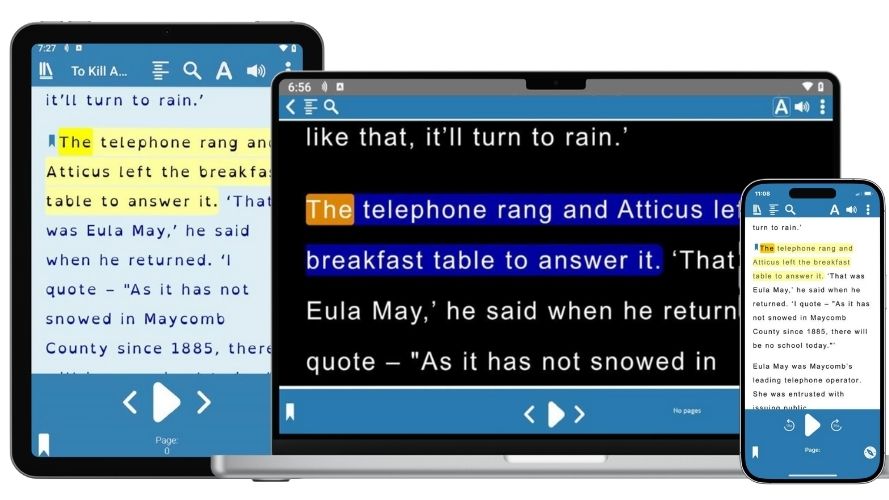
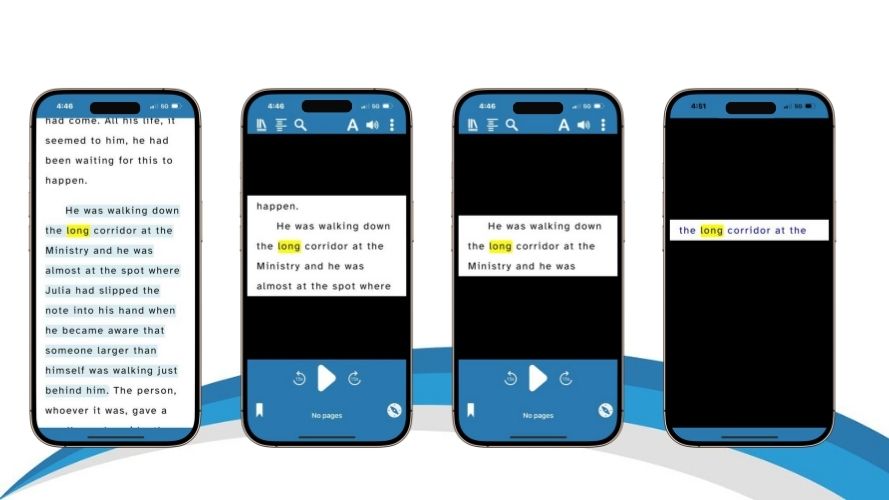
Use the Text Settings in the Reader to adjust the display of your book and make it accessible for you. Options include:
- Text size: Adjust the text so it’s as large as you need. Whatever the size, the text always wraps to the edge of the screen.
- Colours: Choose from a range of colour schemes or specify your own colours for text, background and highlights.
- Fonts: Choose from a range of font options, including sans-serif and dyslexia-friendly fonts to help you view text clearly.
- Spacing and margins: Adjust the letter spacing, line spacing and margins to view the text with clarity.
- Lines Visible: Remove distractions to focus your attention on the text you're reading. Choose to hide controls to show all lines in a full-screen view, or choose to read a single line, 3 lines or 5 lines of text at a time.
Read with Speech
Use EasyReader to listen to audiobooks and text-based books read aloud.
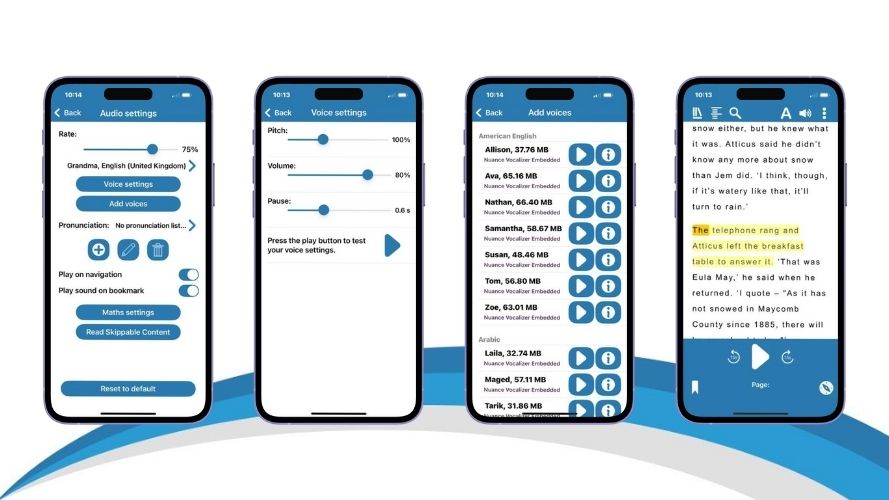
- Choice of reading voice: Read text-based titles using a voice from your device. Unlimited, premium reading voices are available when you upgrade in-app for premium features, or for schools, colleges and universities with EasyReader Education
- Adjust the reading speed: To read at a speed that you find comfortable.
- Make pronunciation changes: Ideal for making sure the voice reads names, towns and scientific terms correctly.
- Play on navigation: Choose whether to start reading as soon as you to a different heading, search term or bookmark.
- Read skippable items: Option to read or skip image descriptions, page numbers, footnotes and more.
- Math support: The voice will intuitively read maths equations that are created in the MathML format.
- Read along: Each word is highlighted in the reading pane as it is read aloud, so you can read along.
Read with Screen Readers & Braille Displays
Screen Reader view introduces a linear reading mode which ensures seamless book navigation when for screen reader users and braille readers. Readers using braille or a screen reader can bookmark text effortlessly, and switch between standard Web View and Screen Reader View.
EasyReader is compatible with a screen readers on different devices, so blind readers can easily navigate the app and read text-based titles. Supported screen readers include:
- VoiceOver for iPads and iPhones
- TalkBack for Android smartphones and tablets
- SuperNova, Dolphin ScreenReader, JAWS and NVDA for Windows
If you are using a screen reader, you can also connect a Braille display to read text-based titles in Braille. EasyReader App works with any braille displays that are compatible with the screen reader you are using.
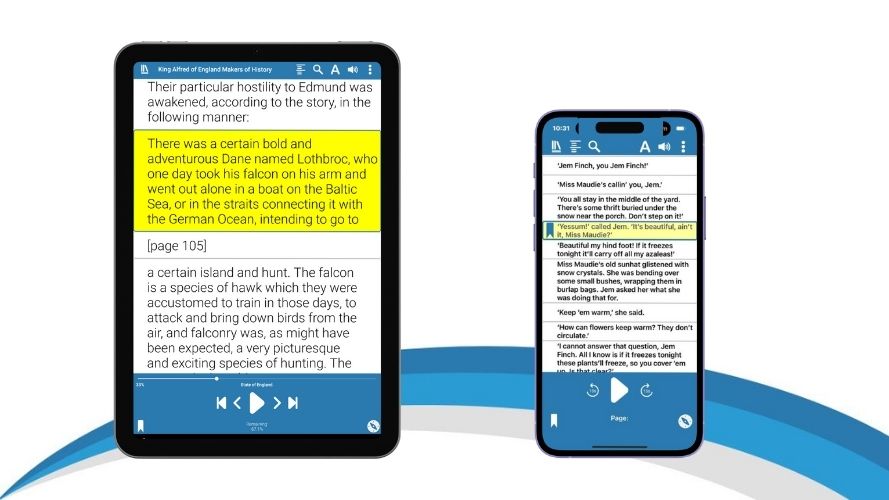
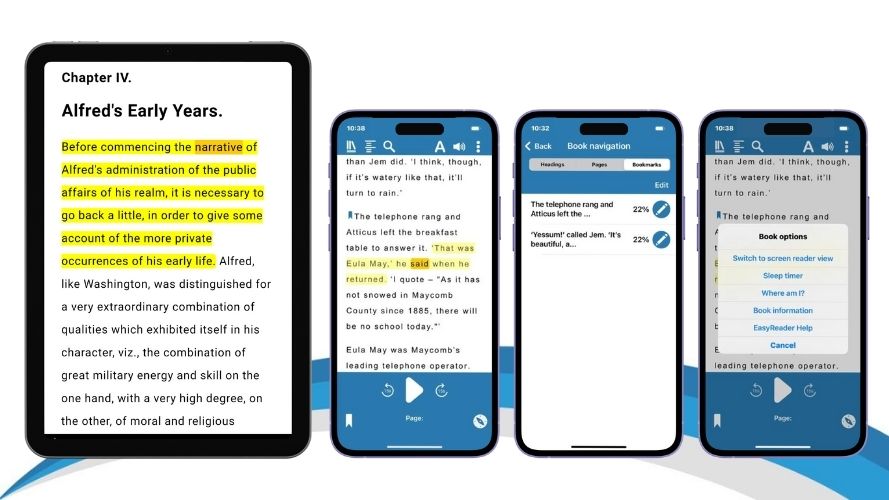
Book Reader Features
EasyReader app includes a range of options to make it easy to navigate, explore and read accessible books.
- Play: Start and stop playback
- Next and Previous: Skip forward and backwards through text
- Navigation level: Choose how far the Next and Previous buttons skip
- Headings list: Skip straight to any heading, page number of bookmark in your book
- Search: Jump straight to a specific word or phrase in the book
- Bookmarks and notes: Helps you remember key passages in the text
- Sleep timer: Stop reading after 15, 30, 45 or 60 minutes
- Full Screen: Removes distractions and hides controls in a single tap
- Lines Visible: Focus to one, three or five lines of text, or all text
Help, Support & Training
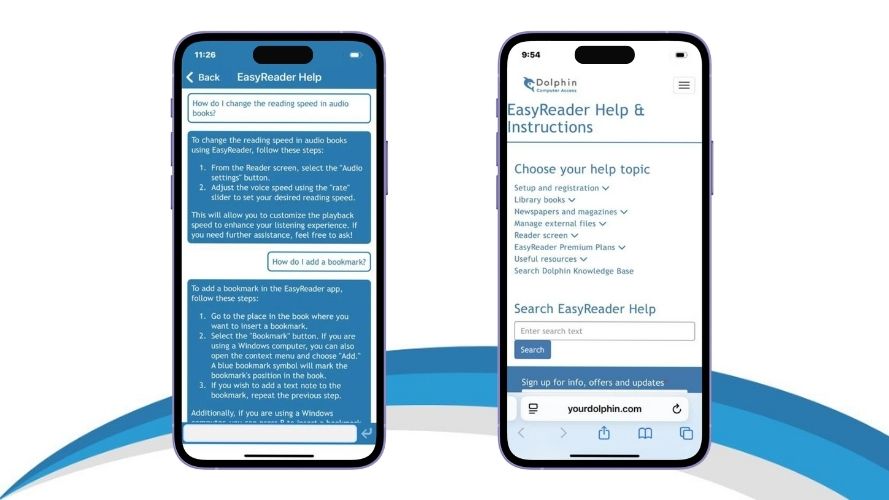
EasyReader Help
AI-powered features are integrated into EasyReader Help, to make it quicker and easier to find the answers you need.
Simply 'Ask a Question' in EasyReader Help, and it instantly performs a search through all EasyReader manuals, reference guides, training materials and articles to provide you with an instant answer - with links to further information. This helps you learn more about how to use EasyReader app, providing support for any issues you may experience.
Information and training are also available in the EasyReader app 'Help & Instructions' which provides manual-based training articles in an easy-to-use menu layout.
EasyReader Video Tutorials

EasyReader Training
Expand your skills and knowledge of EasyReader app, premium features and EasyReader Education, with:
- Training videos
- Knowledge Base Articles
- Online Help
Get more from EasyReader
EasyReader In-App Premium Features
£41.65 per year (ex tax/VAT)
Unlock premium accessibility features that enhance your individual reading experience, including:
- Read independently in ways that are accessible to you
- Unlimited book downloads
- Unlimited imports and clipboard texts
EasyReader Education
Unlock powerful new learning opportunities, to make reading accessible for every print-impaired learner in your school, college or university:
- Empower independence and achievement
- Unlock powerful revision tools to improve exam results
- Teacher insights without extra work
Premium Features
All the Benefits of EasyReader App
With EasyReader Premium features you unlock even more accessible reading features, while maintaining all the features and benefits available in the EasyReader app, including:
- A direct connection to over 50 accessible book and newspaper services around the world
- The EasyReader accessible reader, which you can customise to your own reading preferences
- The ability to use on any device, including iOS, Android, Amazon Fire and Windows computers
An upgrade to EasyReader Premium enables you to read more, organise and navigate your books, explore text for learning and save your reading material across devices.
Reading Across Devices
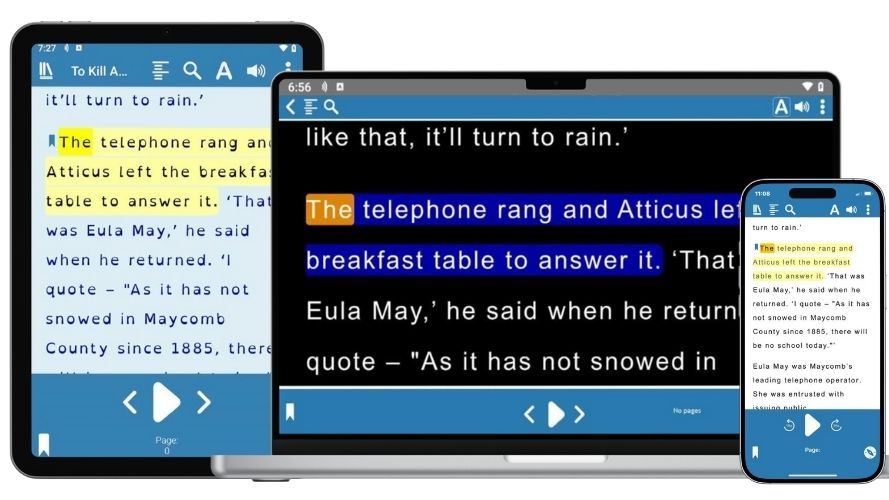
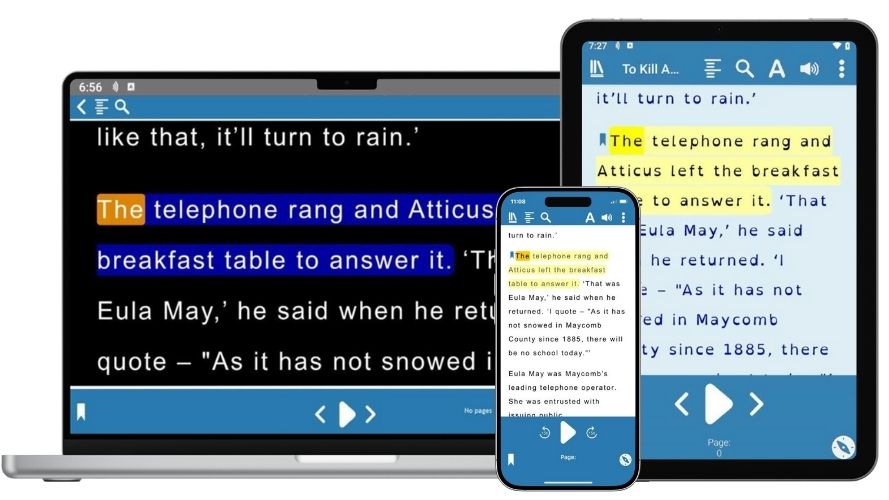
With EasyReader Premium features, your book lists and reading positions are securely saved and available across devices, so you can log into EasyReader on any device you own, access your reading list and continue reading where you left off.
EasyReader Premium synchronises:
- Your saved reading preferences - including fonts and colour schemes
- Your library logins
- Your bookmarks and notes
- Clipboard texts
- Voice pronunciations
Unlock Powerful New Learning Tools
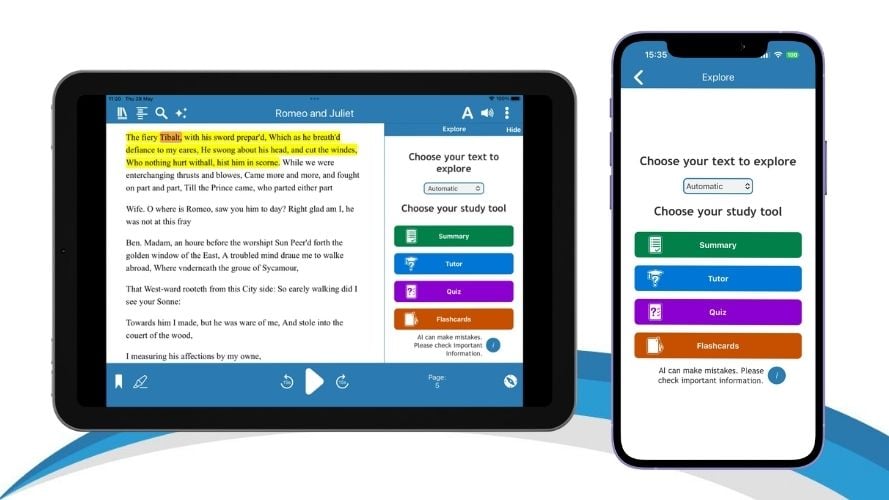
Exclusive new Explore tools are available with EasyReader Premium. These open up exciting learning opportunities for people with dyslexia, vision impairment and other print disabilities or additional reading needs.
These new AI-powered study and revision tools empower print disabled students to achieve their academic goals, enabling them to study and revise independently. The tools help strengthen understanding of text, deepen comprehension and improve revision practices.
If you would benefit from using accessible reading tools for reading and revision, EasyReader Education is available for all schools, colleges and universities. Let your schools support team or SEND team know about EasyReader Education, and encourage them to take a 30 day trial, to open up accessible reading to all students.
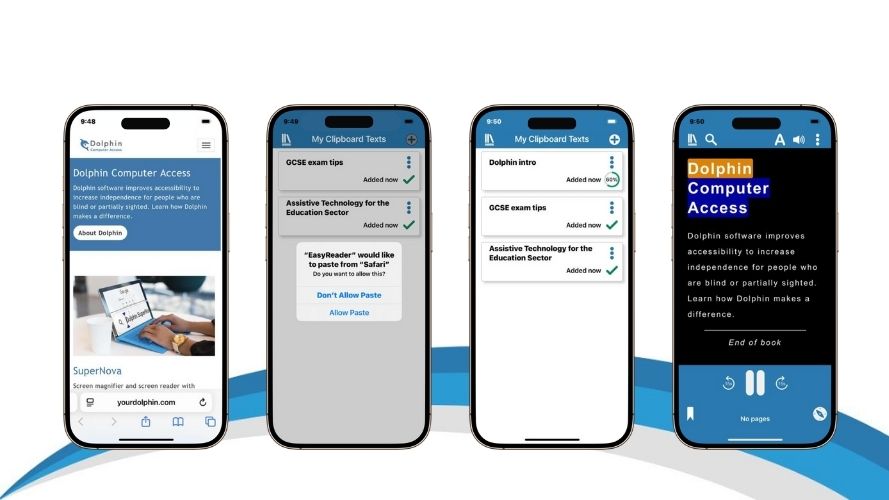
Clipboard Texts
Copy text from web pages, emails and documents on your device's clipboard to read with your own accessibility preferences in EasyReader.
EasyReader Premium enables you to import as many clipboard texts as you like, without limitations.
EasyReader Premium saves all clipboard texts to your account, so you can open and read in EasyReader on any device.
Organise Your Reading Lists
With EasyReader Premium, you can organise your reading lists with Tags.
With this exclusive premium feature, you can give books colour-coded Tags, which you can then access quickly using filters.
You may choose to use the Tags to organise and sort your books by subject, genre or author; or separate the books you read for pleasure from those you read for work or study.
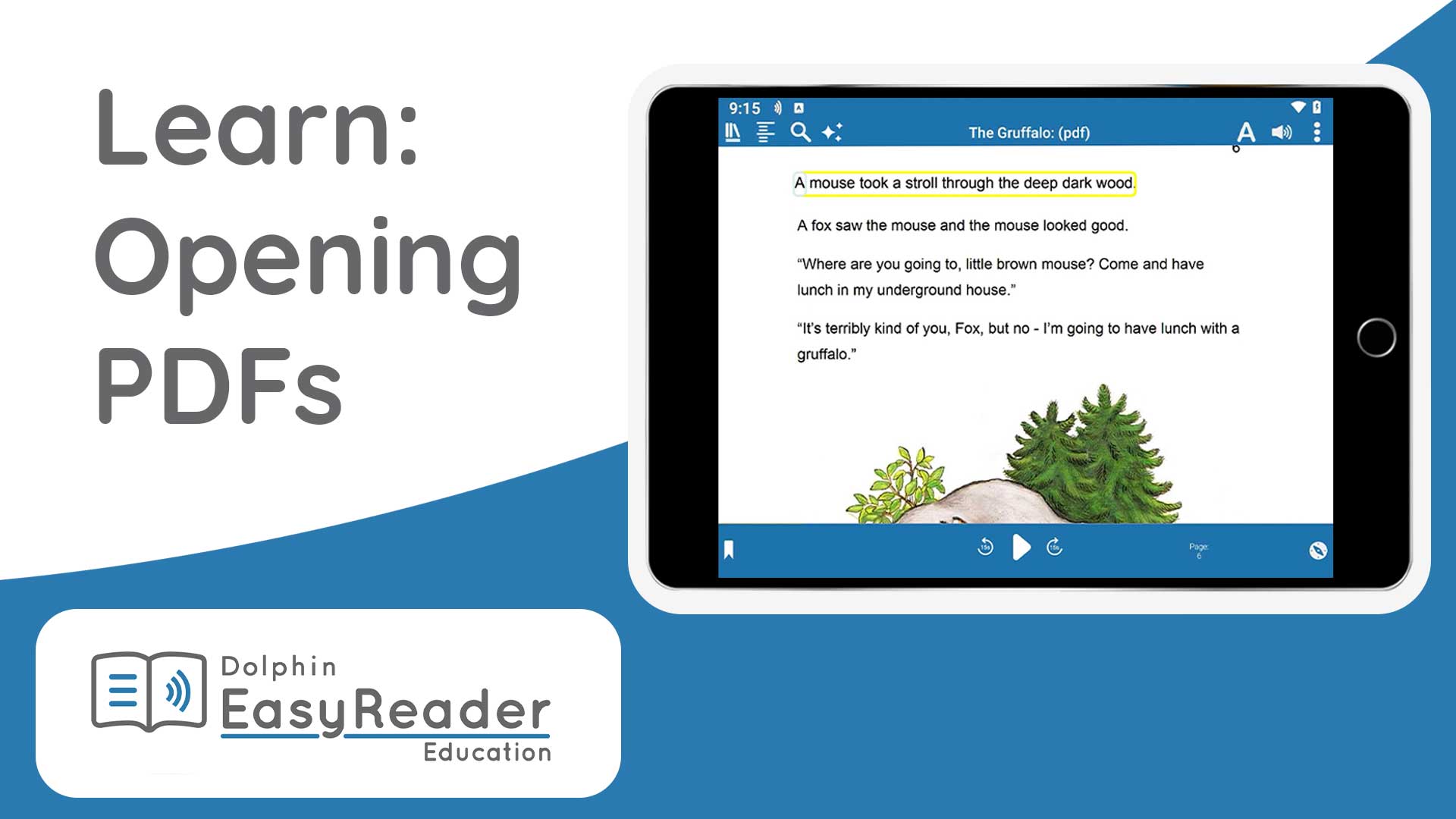
Import Text-based PDFs
Make PDF resources accessible by importing them into EasyReader.
With an upgrade to EasyReader Premium, you can read PDFs in their original layout, or switch to text-view to read with your preferred fonts and colours.
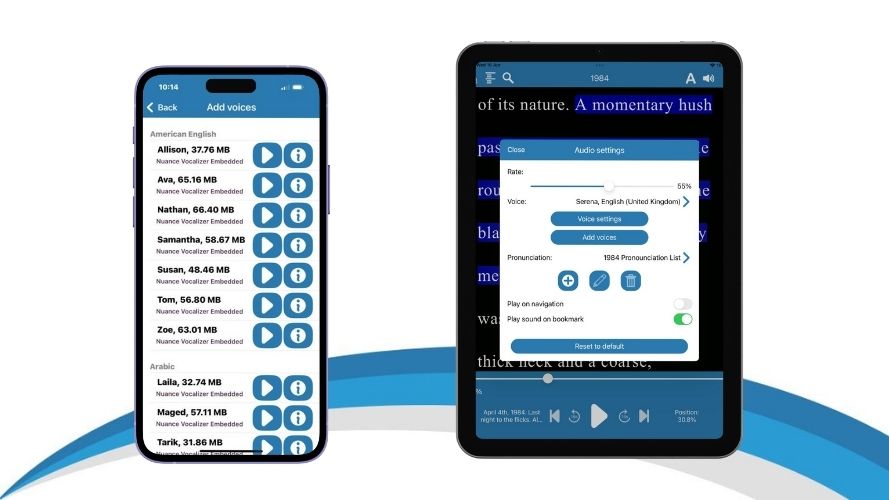
Wider Range of Reading Voices
EasyReader Premium gives you access to unlimited reading voices, which you can sample and select in the app.
Choose from a range of high-quality reading voices, which are provided by Nuance Vocalizer, available across multiple languages.
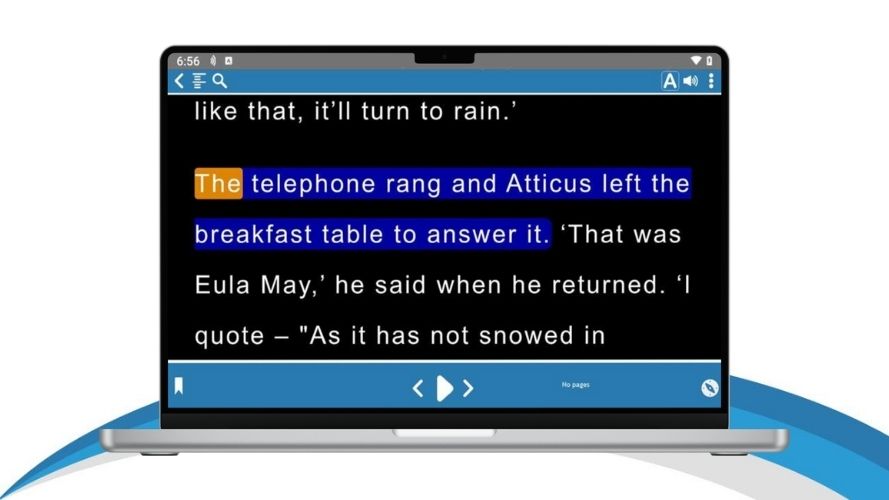
EasyReader App for Mac
EasyReader App for Mac is exclusive to EasyReader Premium and EasyReader Education.
All the premium EasyReader features are available, including reading across devices, additional file imports and clipboard texts, high quality reading voices and more.
If you have upgraded, to EasyReader Premium in-app download the EasyReader App for Mac today from the App Store.
Detailed Image Descriptions
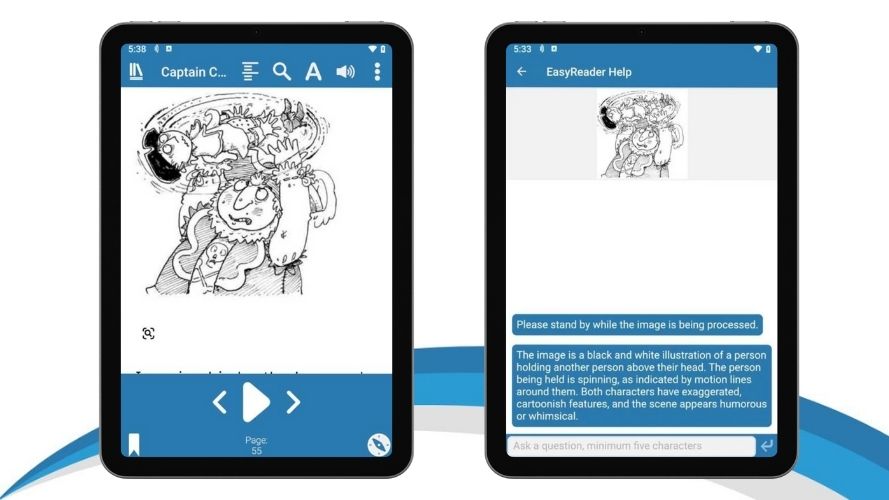
With EasyReader Premium, vision impaired readers benefit from highly detailed, AI-generated description of images in books and documents in a single tap.
Tap on an image in any book you're reading in EasyReader app and the integrated AI technology provides an instant in-depth description.
If you'd like further information, simply ask more questions and it is instantly provided, to give you a fuller picture of what is displayed.
Extra import options for Windows
Customers who upgrade in-app to EasyReader Premium can use EasyReader App for Windows.
This ensures you benefit from more ways to import Word, text, ePub, DAISY or text-based PDF files into EasyReader, to read with your customised accessibility settings.
Import options include:
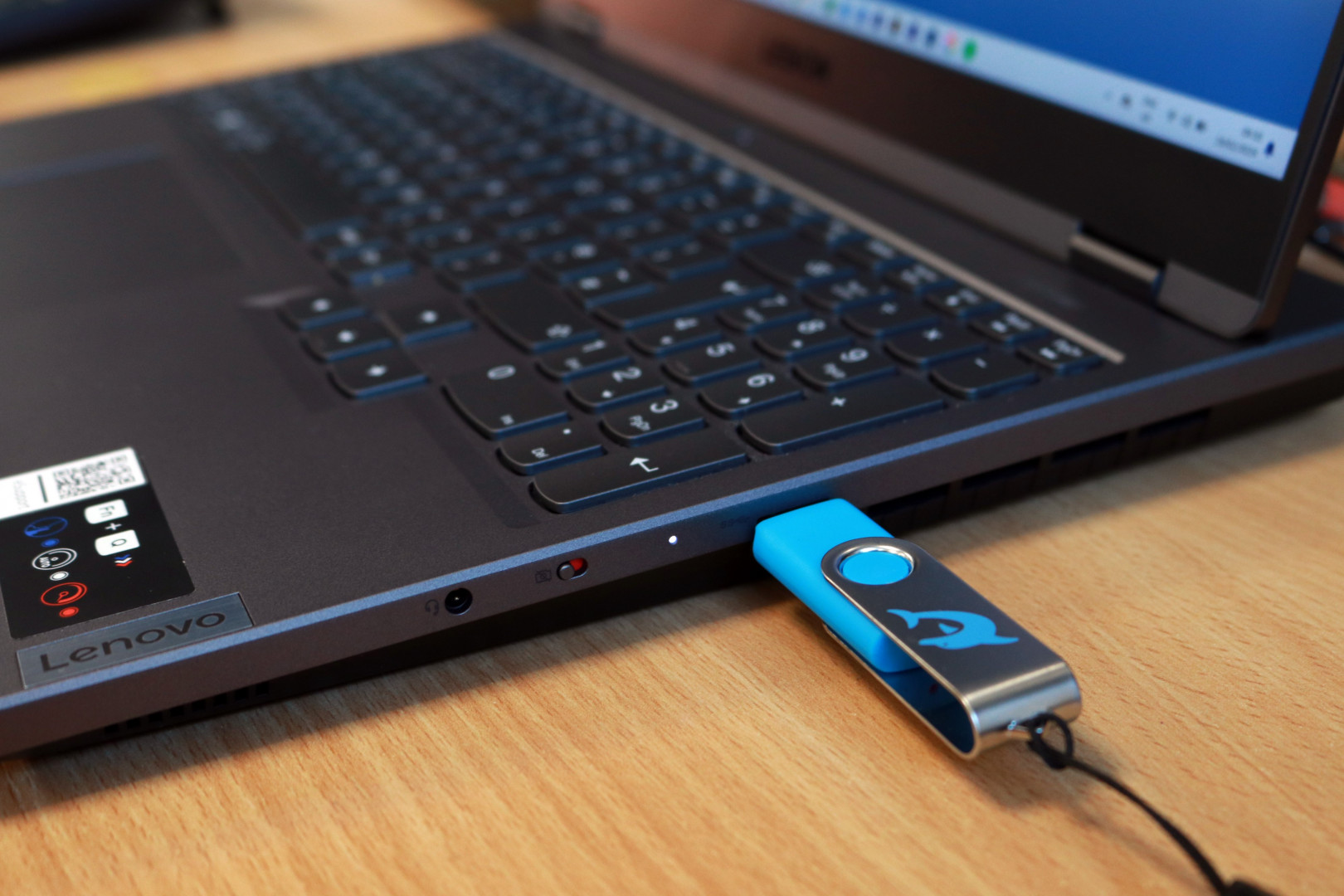
- Import files from a connected USB drive
- Set up a folder monitor. This automatically shows any files saved to a personal folder on your device, or a shared folder on a server.
Import Personal Files
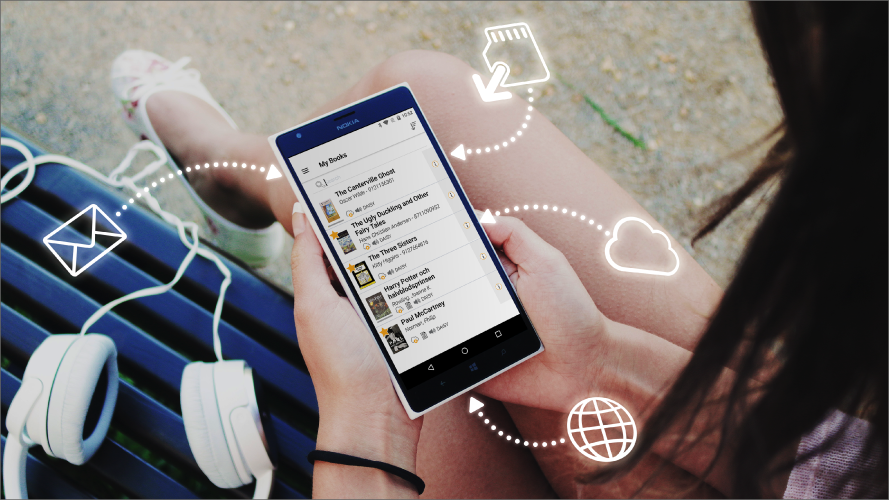
Upgrade to EasyReader Premium and you can import as many files into EasyReader app as you like - including files in Word, text, ePub and text-based PDF formats - to read with accessibility features on any device.
You can import files saved to your device, or sign in to Google Drive or Microsoft OneDrive for direct access to files saved on the cloud.
Technical Information
Blogs and Articles
- 10 Ways EasyReader Premium Benefits Educators
- Benefits of Accessible Reading Apps
- How audio books improve accessibility
- How EasyReader helped me excel at University
- Transforming reading: the power of Text to Speech
- The impact of accessible reading material
- EasyReader helped me achieve great GCSE results